How to show an estimated delivery date in WooCommerce
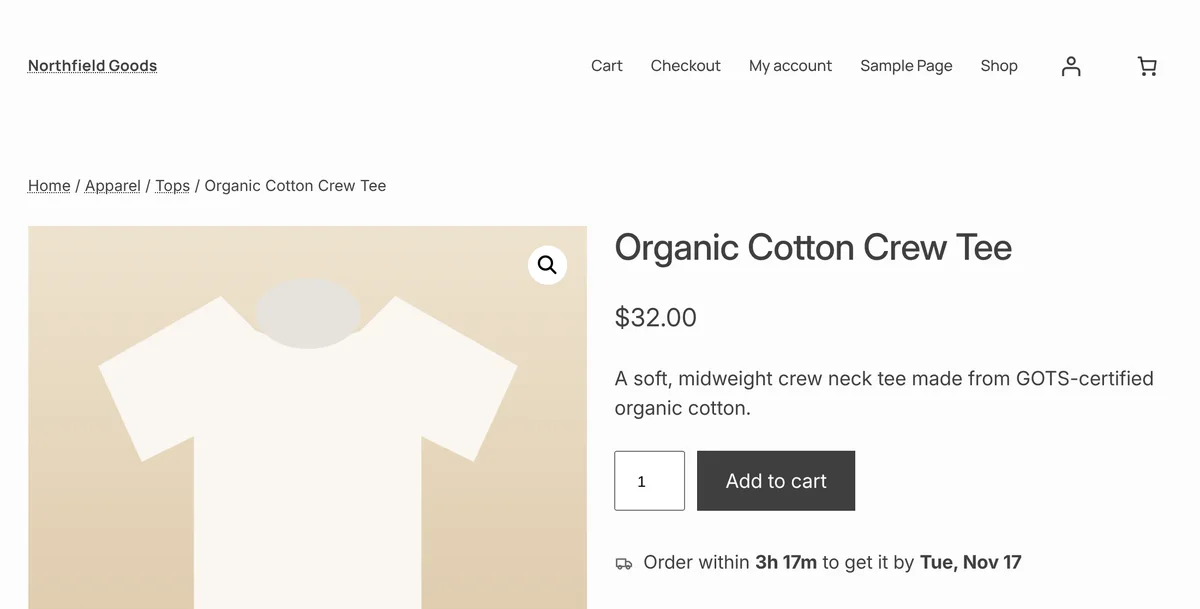
"Arrives by Thu, Nov 19" answers the question every shopper has before buying, and it's what they're used to from big stores. WooCommerce doesn't show one by default. Here's how the date is worked out, and how to show it on product pages, in the cart and at checkout.
Short version: install the free ShelfDate plugin, set your working days, cutoff time and shipping days under WooCommerce → Settings → Delivery dates, and the date appears under every Add to cart button.
How the date is worked out
An honest estimate has three parts:
- The cutoff. An order placed before your daily cutoff (say 2 pm) on a working day counts from today. After the cutoff, or on a weekend, it counts from the next working day.
- Packing days. How long before the parcel leaves. Usually 0 or 1 for stock you hold, more for made-to-order.
- Shipping days. A range, such as 3 to 5 working days, because carriers aren't exact.
Weekends and your holidays are skipped at every step. Show a range ("Nov 17 – Nov 19") rather than one date unless your carrier is very reliable.
| Order placed | Cutoff 2 pm, 1 packing day, 2–3 shipping days |
|---|---|
| Monday 10 am | Ships Tuesday, arrives Thu – Fri |
| Monday 4 pm | Ships Wednesday, arrives Fri – Mon |
| Saturday | Ships Tuesday, arrives Thu – Fri |
Set it up with ShelfDate (free)
- Download shelfdate.zip (don't unzip it). In WordPress, go to Plugins → Add New → Upload Plugin, choose the file, click Install Now, then Activate.
- Check your store's time zone under Settings → General → Timezone. Pick a city name (for example Chicago), not a UTC offset, so daylight saving is handled.
- Go to WooCommerce → Settings → Delivery dates. Tick your working days, set the cutoff time, packing days and shipping days, and add any holidays. The live preview shows the message shoppers will see.
- For products that take longer, open the product and set its own days under Product data → Shipping. You can also set days for a whole category; subcategories follow their parent.
ShelfDate works with block themes and classic themes, and with the block cart and checkout. The date is refreshed in the browser, so page caching won't show yesterday's date.
Different dates for different places (ShelfDate Pro)
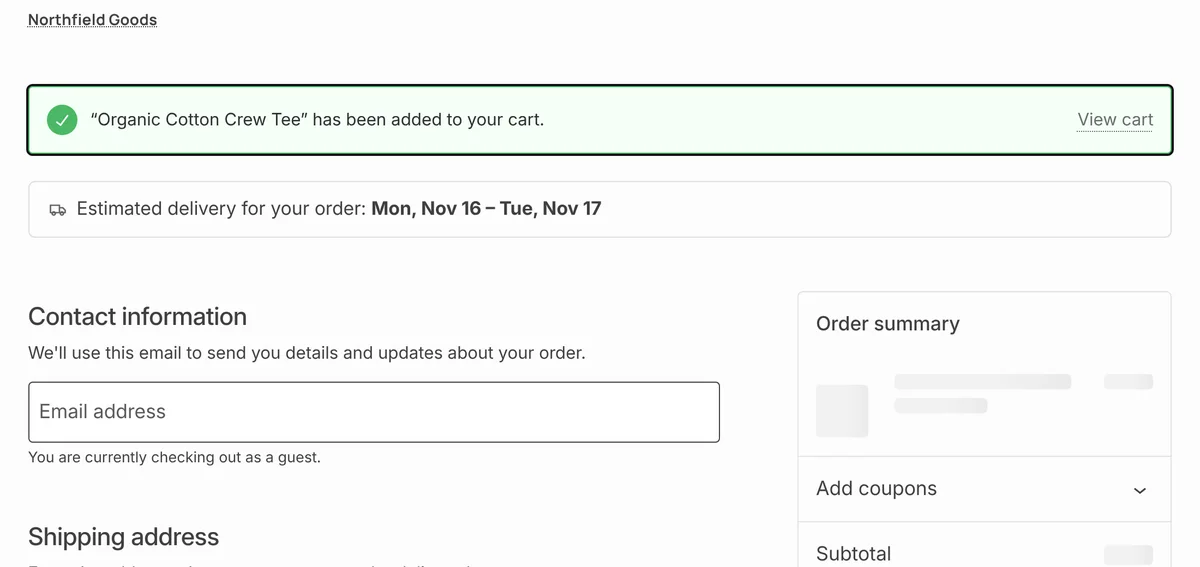
One range for every customer is fine for a small country. If you ship nationwide, nearby customers get their parcel sooner than far-away ones. ShelfDate Pro sets shipping days per shipping zone and per shipping method, so checkout shows "2–3 days" for a local customer, "4–6 days" across the country, and a different range for free shipping.
Pro also adds a live countdown ("Order within 3h 17m") and saves the estimate with each order, so it appears in the order emails, on the thank-you page, in My Account and in the order admin.
Mistakes to avoid
- Promising a single exact date. A range that you hit beats a date that you miss.
- Forgetting holidays. Add carrier holidays, not just your own days off.
- A UTC-offset time zone. It doesn't change for daylight saving, so your cutoff drifts by an hour twice a year.
Show delivery dates in five minutes
ShelfDate is free. ShelfDate Pro adds dates per shipping zone, the countdown and dates in order emails, from $39 a year with a 30-day money-back guarantee.
Download free ShelfDate See ShelfDate Pro