How to add a size guide to every WooCommerce product
Shoppers who can't find a size chart either guess or leave, and wrong guesses come back as returns. The fix is a Size Guide tab next to Description on every clothing or shoe product. WooCommerce can't do this on its own, so here are three ways to do it, from free and manual to fully automatic.
Short version: install the free ShelfTabs plugin, add the Clothing & shoes pack, fill in your measurements once, then add the Size Guide tab to your products. With ShelfTabs Pro, one rule puts it on every product in a category for you.
Option 1: paste the chart into each description (free, no plugin)
You can put a size table at the bottom of every product description. It works, but the chart is buried under the description text, and when a measurement changes you have to edit every product again. Fine for five products; painful for fifty.
Option 2: a saved Size Guide tab (free, with ShelfTabs)
A saved tab is written once and reused. Change it in one place and every product that uses it updates.
- Download shelftabs.zip (don't unzip it). In WordPress, go to Plugins → Add New → Upload Plugin, choose the file, click Install Now, then Activate.
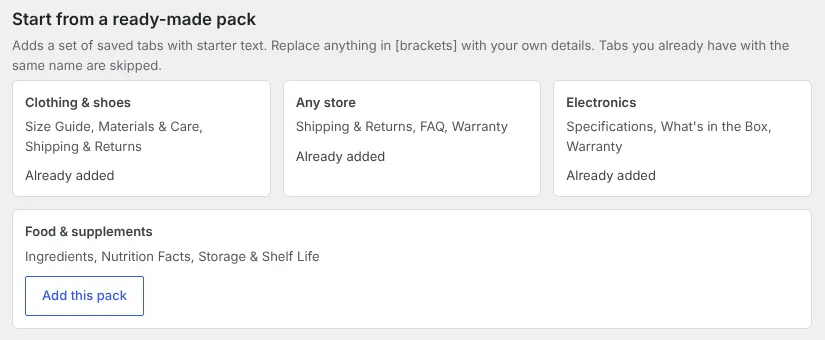
- Go to WooCommerce → ShelfTabs. Under Start from a ready-made pack, click Add this pack on Clothing & shoes. You get three saved tabs: Size Guide, Materials & Care, and Shipping & Returns.
- Click Edit next to Size Guide. Replace every number in [brackets] with your own measurements, then save.
- Open a product, scroll to Product data → Product tabs, choose Size Guide from the saved tabs list and update the product. Repeat for each product.
The starter Size Guide is a simple table of chest, waist and length in inches and centimetres. Use whatever columns fit your products: shoes usually need US, UK and EU sizes plus foot length in centimetres instead.
Option 3: show it on every product in a category automatically (ShelfTabs Pro)
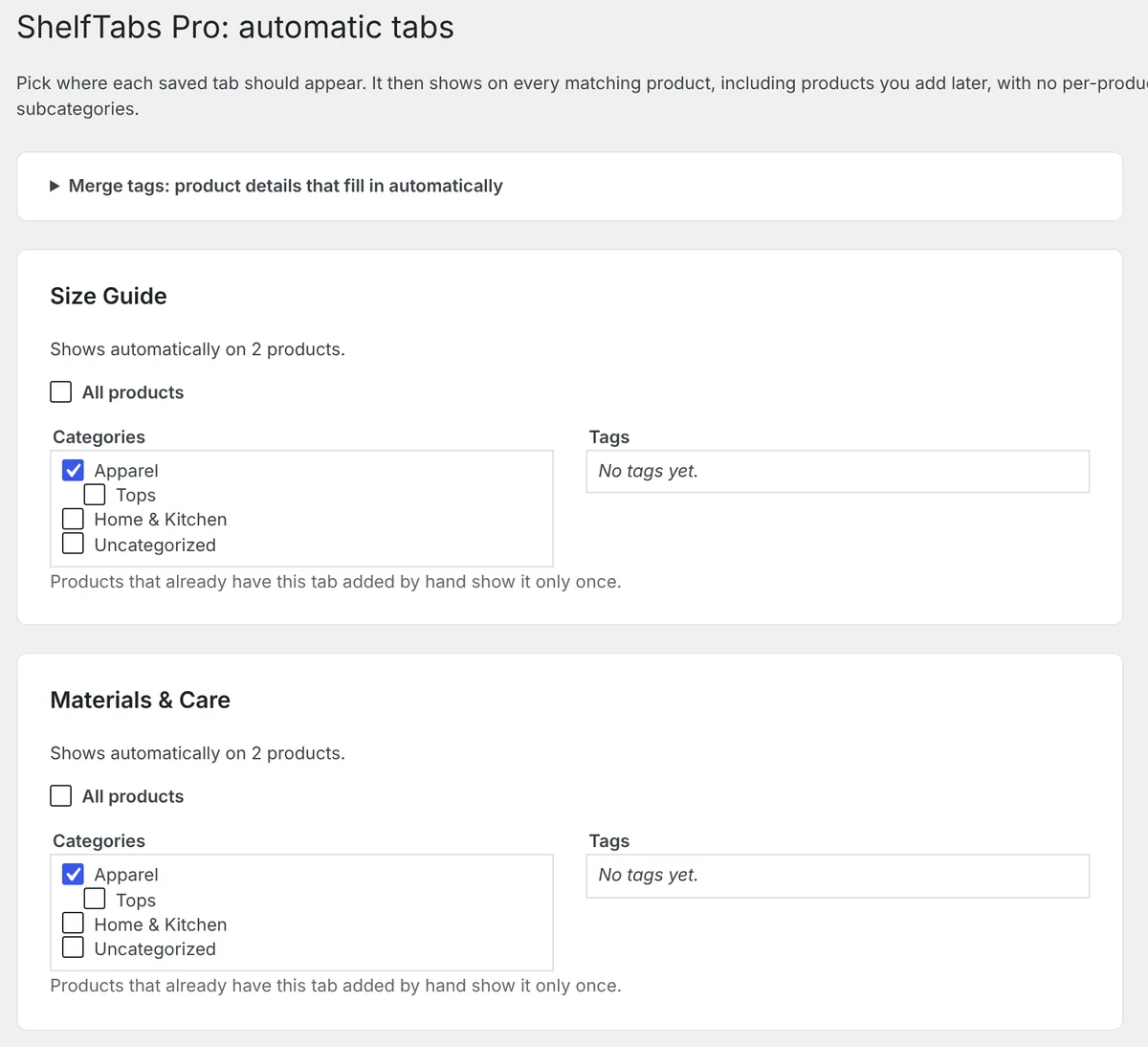
Step 4 above is the slow part. ShelfTabs Pro replaces it with a rule: show Size Guide on every product in Apparel. New products you add to that category get the tab without any extra clicks.
Pro also fills in each product's own details with merge tags, so one tab can say "This is the {{product_name}}, available in {{attribute:size}}" and show the right sizes on each product.
Tips for a size guide people actually use
- Say how to measure: "chest: around the fullest part, under the arms".
- Give both inches and centimetres if you ship abroad.
- Say how the item fits: "runs small, size up if between sizes" saves more returns than the table does.
- Keep one chart per kind of product (tops, trousers, shoes) rather than one giant chart.
Put the size guide on every product without the clicking
The free ShelfTabs plugin gives you the saved tab and the packs. ShelfTabs Pro adds category rules and merge tags. From $29 a year, with a 30-day money-back guarantee.
Download free ShelfTabs See ShelfTabs Pro